Event Type: Calendar Entries Made Easy
The Event reminder type includes defined start and end times, distinguishing it from standard reminders.
It also synchronizes with your active calendar accounts.
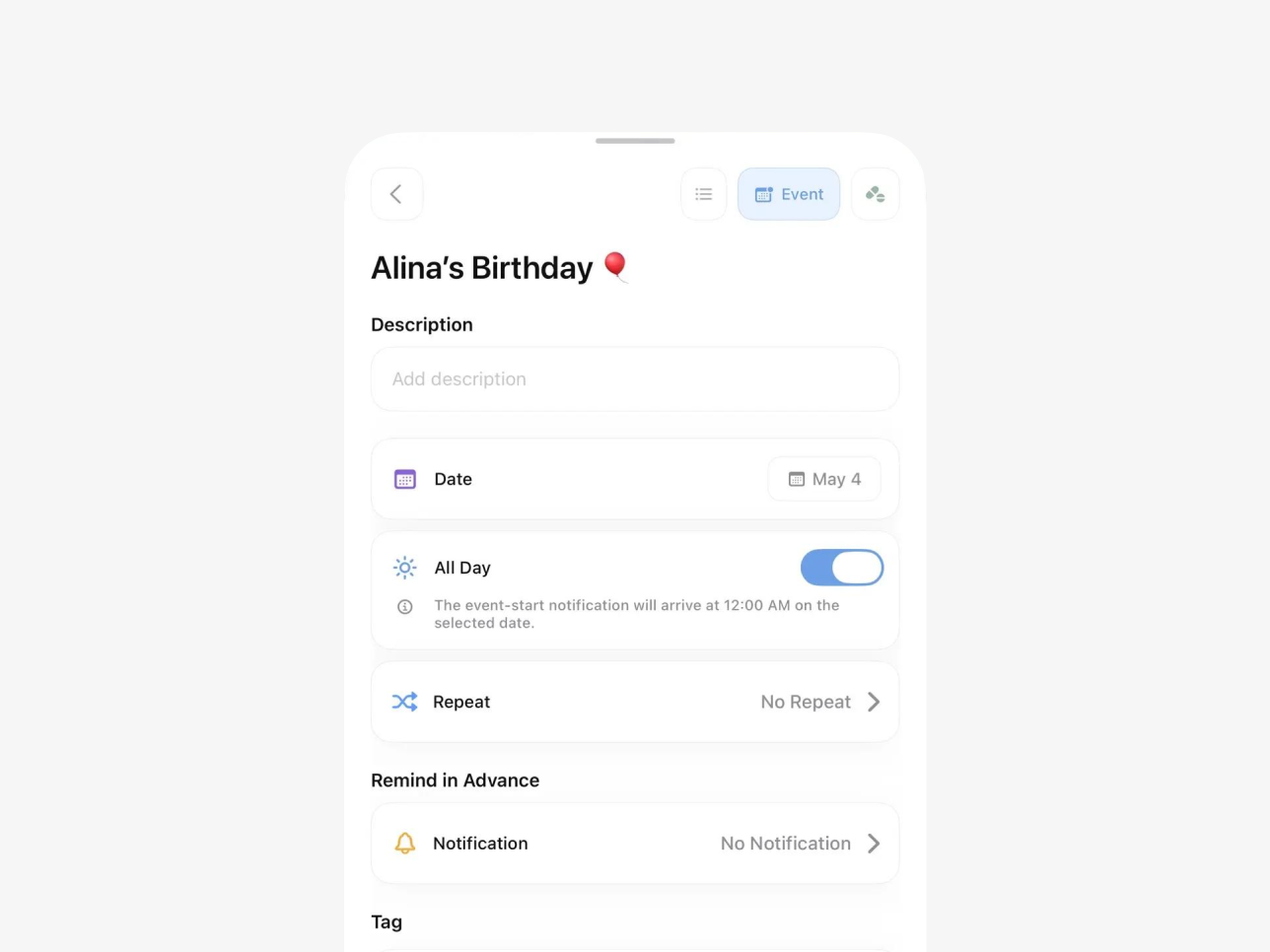
Steps to create an event:
Example: creating the event “Alina’s Birthday”.
- Open the reminder creation interface by tapping the “+” button.
- Use the type toggles in the top right corner to select “Event”.
- Enter a title and a brief description for easy identification in a busy task list.
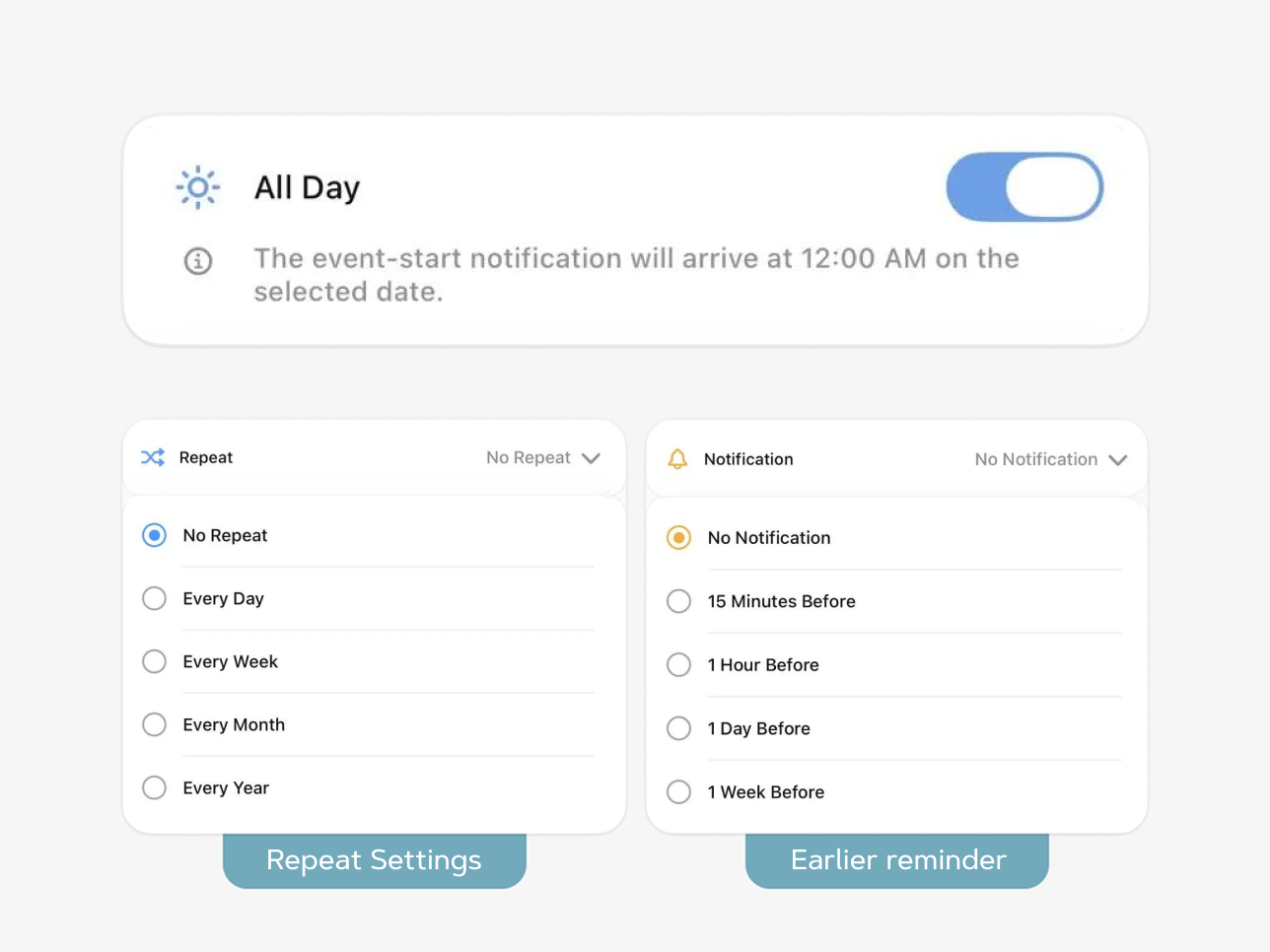
- Specify the start and end date and time. For all‑day events, enable the dedicated toggle: the start notification will be delivered at 00:00 on the selected date.
- Set up recurrence, e.g., “Every year”, to ensure the event appears annually.
- Configure a pre‑event notification, e.g., “1 week before”, to allow time for preparation.
Once created,
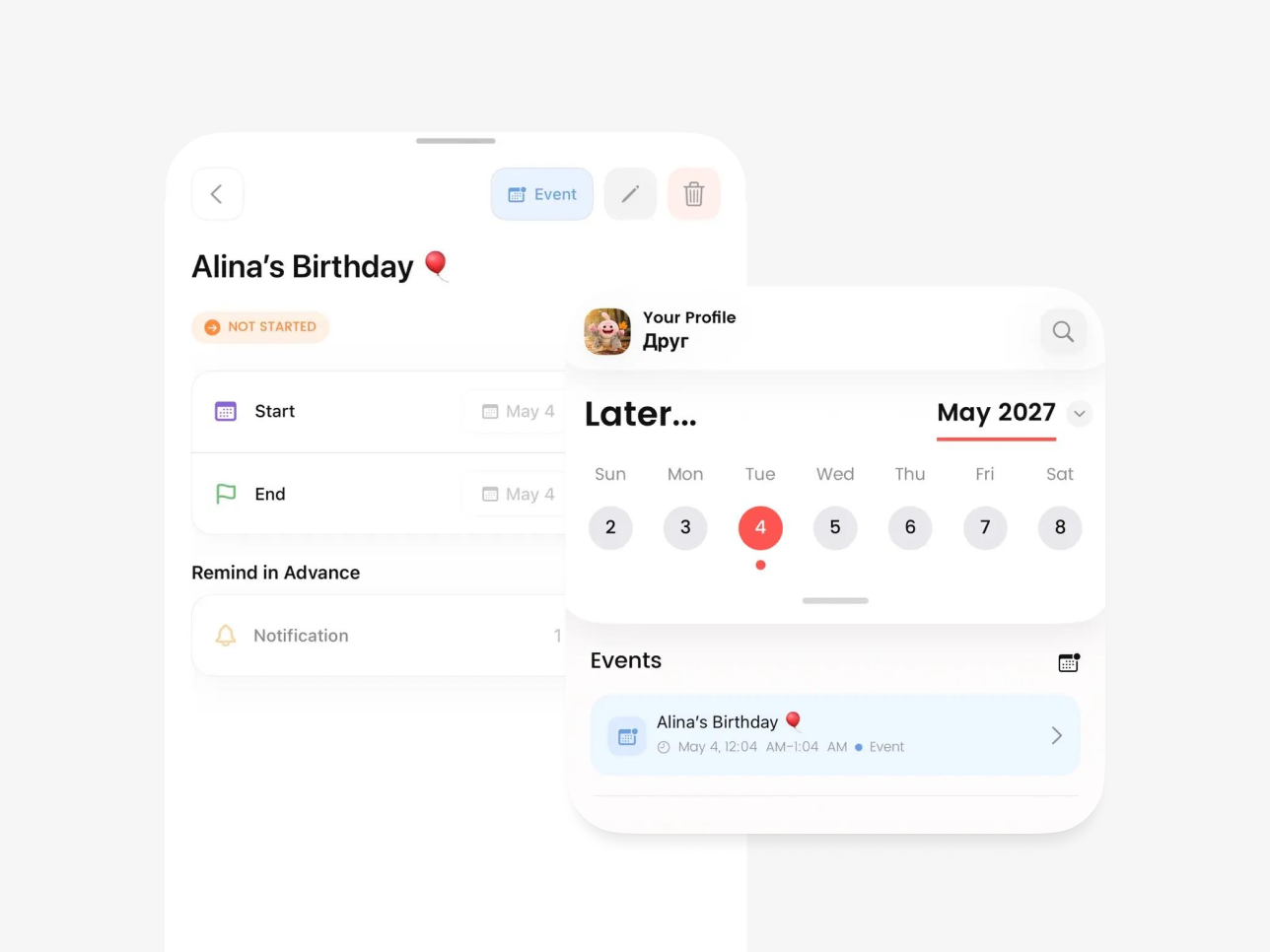
the event will appear on the home screen and in the calendar view. Events are visually distinguished from regular tasks by a blue highlight and the “Event” label. Tapping the card displays full details and the current status:
Not Started, In Progress, or Completed.
Syncing Events with Your Calendar
Let’s get your events in sync so you never miss a thing.
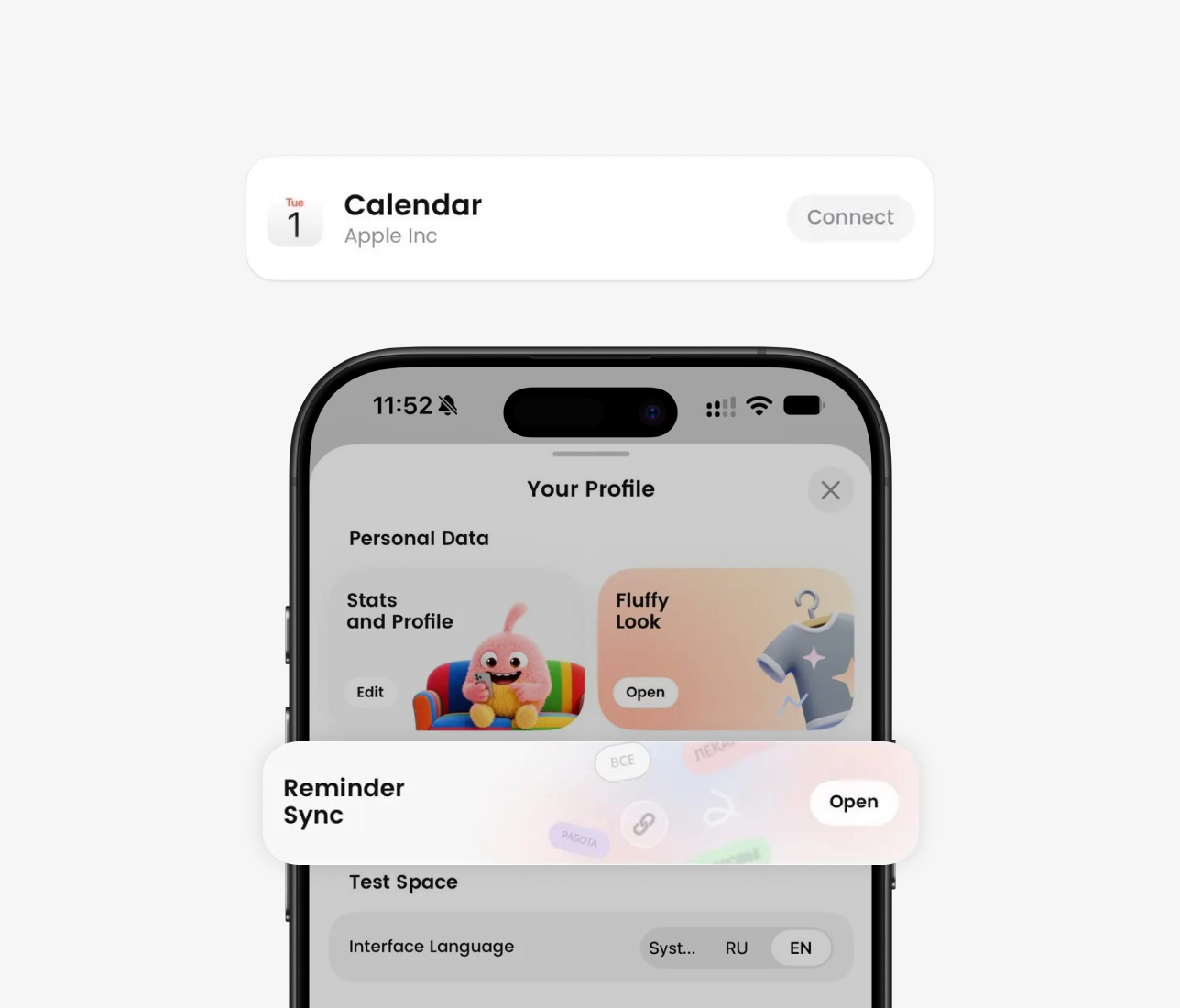
- Go to Your Profile → Reminder Sync.
- Enable calendar sync and pick the calendar you want to use. By default, the app automatically creates a “Fluffy” calendar for you.
Important note:
If you’re using an external connected calendar, there may be a sync delay of up to 5 minutes — this is completely normal.
See also
